Best AI UI/UX Design Tools That Actually Speed Up Your Workflow (2026)

AI is changing how UI/UX designers work at every stage — from the first wireframe to the final handoff. These tools don’t replace your design thinking. They eliminate the repetitive parts: rebuilding components, resizing layouts, generating copy variants, translating Figma files to production code. We’ve tested 40+ AI UI/UX tools and listed only the ones that hold up in real client projects. Sorted by use case, not alphabetical order.

Siter.io

No-code website builder that allows you to design and launch websites directly

Galileo AI

Generate UI designs from prompts

Uizard

AI-powered UI design for fast and easy mockups

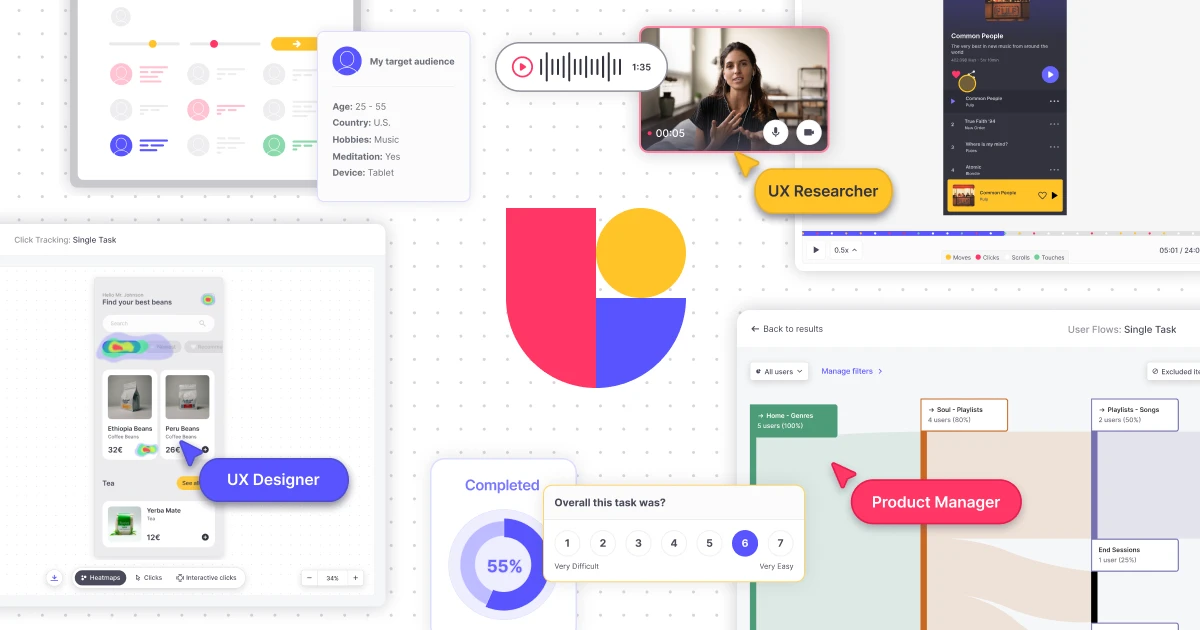
Maze AI

Design with Code that Renders as UI

PageGPT

AI-powered browser extension assistant designed to summarize, analyze, and answer questions

Marvel AI

AI-powered prototyping tool to design, wireframe, and test interactive products.

Penpot

Full-Stack Design with AI

Motiff AI

Automates UI components, layouts, and design

IconScout

Design Faster with Millions of Creative Assets

Figma AI

AI‑assisted design & prompt‑to‑code within Figma

Dorik

Create beautiful websites without code

Airtable

Build custom applications with an AI assistant that can generate and structure

Draftbit

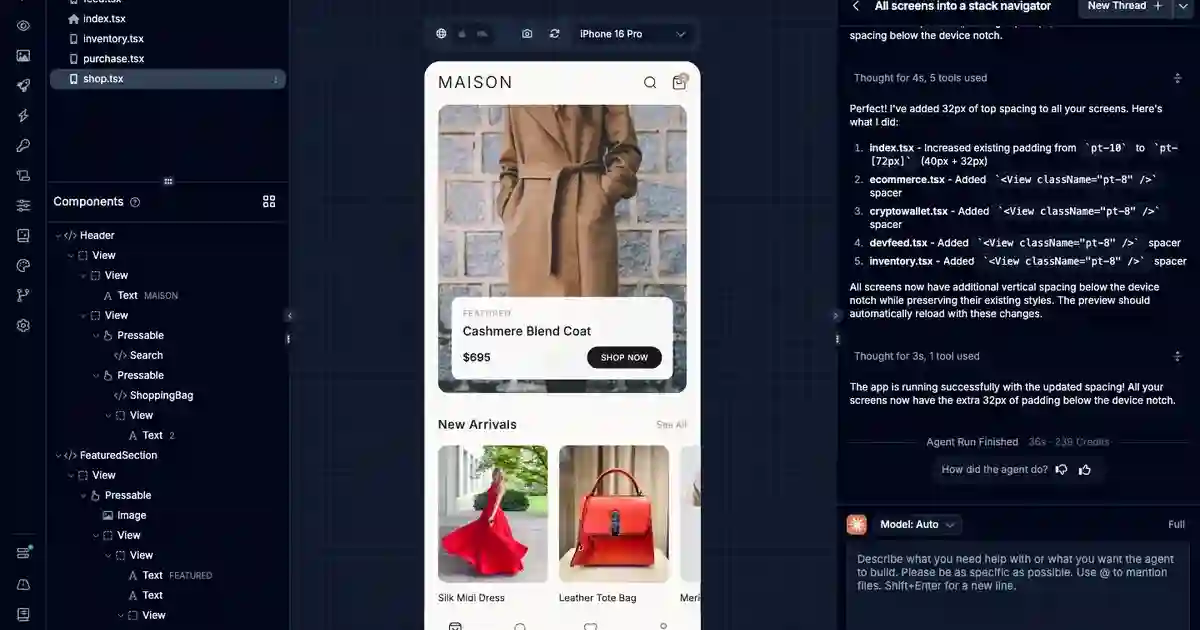
Build native mobile apps with AI agents using production-ready React Native code

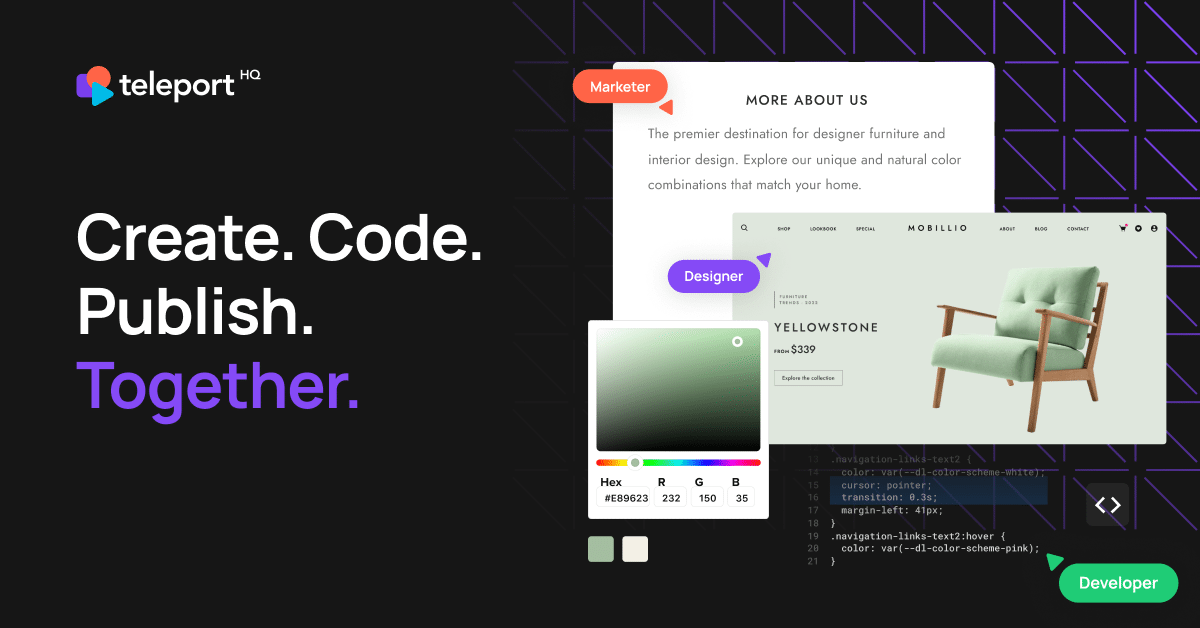
Teleport HQ

Create. Code. Publish. Together.

Banani

AI-powered UI/UX tool to design web and mobile interfaces instantly.

Codia

AI Design Platform to turn ideas, screenshots, and files into editable designs

Whimsical

Collaborative digital whiteboard for mapping user flows, mind maps, and product plans.

Sketch2Code

Software studio · Web · Mobile · AI

Worth exploring us? Bookmark! so you don't forget the URL.

Stop testing random tools. 320+ AI tools for UI, branding, 3D, motion, illustration and more — curated and reviewed by designers who use them daily.

Frequently Asked Questions About AI UI/UX Design Tools

AI-Powered Design Tools for Creative Workflows, Layout & Prototyping

What is the best AI tool for UI/UX design?

The best AI UI/UX design tool depends on your stage in the design process. For wireframing, Visily and Uizard are the most-used tools by UI designers. For design within existing workflows, Figma AI is the strongest choice since it integrates directly into your Figma workspace. For design-to-code, Locofy and Quest AI lead the field. For component generation, Relume AI (for web) and Aceternity UI (for React) are top picks. Our full list of 40+ tools is sorted by use case — browse by what you’re trying to accomplish, not by tool name.

No — but they’re changing what the job looks like. AI tools handle the repetitive, execution-heavy parts of UI/UX work: resizing for multiple breakpoints, generating content variants, building boilerplate wireframes, converting designs to code. The creative and strategic parts — understanding user needs, making design decisions, validating with real users — still require a designer. The best UI/UX designers in 2026 are the ones who’ve learned which AI tools save them the most time without introducing new problems (like unclean code output or inaccurate auto-layouts).

Based on community surveys and our own team’s usage, the most commonly used AI tools among UX designers are: Figma AI (for in-context assistance while designing), ChatGPT / Claude (for UX writing, user research synthesis, and persona development), Whimsical AI (for user flow mapping), Maze AI (for automated usability testing analysis), and Visily (for reference-to-wireframe conversion). Outside pure UX tools, many UX designers also use Midjourney or Adobe Firefly for mood boards and concept visualization.

Yes. Free options for UI design include: Figma (free tier covers most personal projects), Visily (free tier for limited projects), Whimsical (free for basic use), Uizard (free plan available), Framer (free for one published site), Aceternity UI (open-source components), and Haikei (completely free SVG background generator). Most tools on this list have a free tier — filter by “Free” in our directory to see all options.

In practice, most modern tools cover both. UI tools are focused on visual output: layouts, components, color, typography, and handoff to developers. UX tools are focused on process: user research, journey mapping, information architecture, usability testing, and wireframing. Tools like Figma, Sketch, and Adobe XD sit in both camps. AI-specific tools are trending toward the same convergence — Visily converts a reference screenshot into a UI wireframe (UI-focused) while Whimsical AI helps you map the flow behind it (UX-focused).
AI wireframing tools accept different types of input depending on the tool: Text prompt → wireframe: You describe the screen (“a user profile page with avatar, bio, and follower stats”) and the tool generates a wireframe layout Screenshot/image → wireframe: You upload a reference screenshot and the tool recreates its structure as editable components (Visily does this well) Hand-drawn sketch → wireframe: You draw a rough layout on paper, photograph it, and the tool converts it to a digital wireframe (Uizard’s strongest use case) Template → customized layout: You start from a template and let AI adjust it based on your content Most tools let you export the output directly to Figma for further refinement.

The top tools for Figma-to-code conversion in 2026 are: Locofy.ai (best for React and Next.js output), Quest AI (strong for React Native), Anima (good for HTML/CSS output with developer annotations), Builder.io (strong for Visual CMS integration), and Figma’s Dev Mode (native Figma feature for clean code inspection). The quality of output depends heavily on how well your Figma file is organized — named layers, proper auto-layout, and a consistent component structure will produce significantly cleaner code than a messy file.

AI UI generation tools have improved dramatically since 2023, but accuracy varies by tool and use case. For layout generation, tools like Relume AI produce clean, logical section structures for marketing pages. For component generation, the output is usually a good starting point but requires manual refinement — especially for complex interactive states. For design-to-code, accuracy depends almost entirely on how structured your Figma file is. As a general rule: use AI to generate at 70–80% quality, then apply your design judgment to get to 100%.

Get New AI design tools Update in your inbox, every Monday.

Get New AI design tools Update in your inbox, every Monday.

You have searched for...

Topaz Photo

Maximize Your Image Quality With AI-Powered Sharpening, Noise Reduction, and Upscaling

Related products

Snaptrude

Design, model, and collaborate

Spacely AI

Redesign rooms and visualize

Pageon AI

Turn ideas into polished